
Option and value descriptions
Option and value descriptions
✨Demo product: Option description (password: 1)
Show extra details about an option or a specific value — pulled straight from a Shopify metafield — instead of leaving shoppers to guess what "Merino wool" or a color name means. Configure it from Configure Variants → Description config.
Two levels
Level | Metafield owner | Use for |
|---|---|---|
Option-level | Product metafield | A description that applies to the whole option (e.g. a sizing note for "Size") |
Value-level | Variant metafield | A description specific to one value (e.g. fabric details for "Merino wool") |
For each level, pick the metafield to pull the description from, then choose where it displays:
- Below name
- Beside name
- Below option
- Tooltip (on hover)
- Popup (on click)
Supported metafield content
The description renders differently depending on the metafield's type:
Metafield type | How it renders |
|---|---|
Plain text | Shown as-is |
Color (hex) | Rendered as a color swatch |
Image | Shown as an image |
Video | Shown as an inline video player |
Measurement | Formatted as "<value> <unit>" (e.g. "42 cm") |
Rating | Formatted as "<value>/<scale>" (e.g. "4/5") |
Money | Formatted as "<amount> <currency>" (e.g. "12 USD") |
How to set it up
Step 1: Create the metafield in Shopify admin
Create one definition for each level you plan to use — they live under different owner types, so set them up separately.
- Go to Shopify admin → Settings → Custom data
- Pick the owner type for the level you're setting up
- Option-level description → click Products → Add definition
- Value-level description → click Variants → Add definition
- Name the definition and choose its type
Give it a clear Name (this is what you'll see in the app's picker, shown as Name (namespace.key)), then pick a Content type. Any type works — the display type just changes how it renders on the storefront:
- Single line text / Multi-line text → shown as plain text
- File (image) → shown as an image
- File (video) → shown as an inline video player
- Dimension → formatted as "value unit" (e.g. "42 cm")
- Rating → formatted as "value/scale" (e.g. "4/5")
- Money → formatted as "amount currency" (e.g. "12 USD")
- Save the definition
- Fill in the value on each product
Option-level
- On the Product page, scroll down to the Product metafields section.
- Select the metafield created for Option description.
- Enter the description for each option on that product. Repeat these steps for every product where you want to show option descriptions.
Value-level
- Open the product and click the variant you want to add a description for.
- Scroll down to the Variant metafields section.
- Select the Option Value Description metafield and enter the description for that variant value. Repeat these steps for each variant that needs a description.
Step 2: Turn it on in the app
- Go to Variant display → open Description config for an option
- Turn on Option-level and/or Value-level descriptions
Pick the metafield you created — the Option-level dropdown lists your Product definitions, the Value-level dropdown lists your Variant (product variant) definitions.
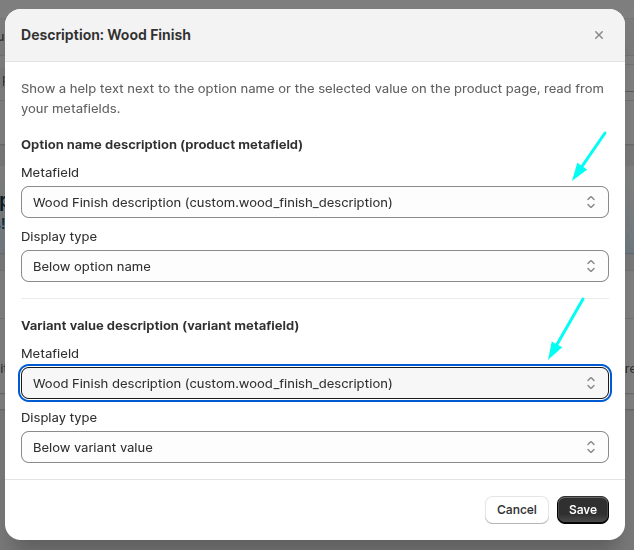
- Choose the display type
Below name, beside name, below option, tooltip, or popup.
- Click Save
Updated on: 25/09/2026
Thank you!